Change Password
Change Password
The learners have the option to update their password in their login to maintain account privacy.
Instruction
1. Click on the “Menu” option in the top left corner of the dashboard.
2. Select the “Profile” option from the side menu. A dropdown menu will appear.
3. Click on the “Change Password” option to access the password update page.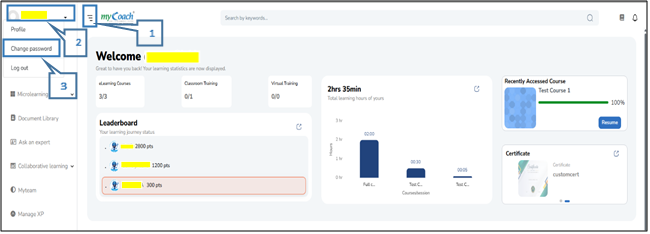
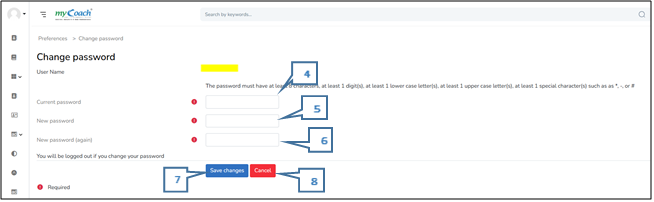
4. Enter your Current Password in the designated field.
5. Enter your New Password in the appropriate field.
6. Re-enter the New Password to confirm it. The system will display an error if both the entered passwords do not match.
7. Click on the “Save Changes” option to update the password. Once the password is successfully changed, the system will automatically log out, and updated credentials will need to be entered to log in.
8. Click “Cancel” to discard if there is no need to change the password.